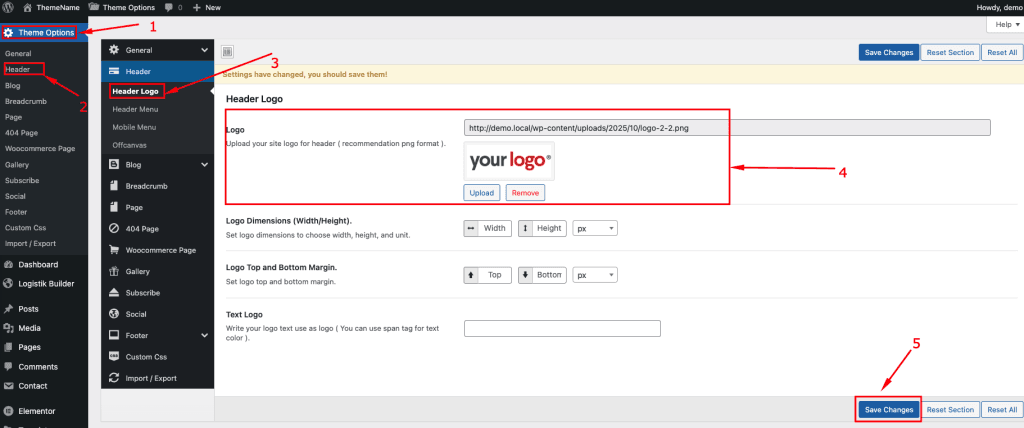
To change your Global Header Logo, log in to your WordPress Admin Dashboard and follow the steps below:
- Go to Dashboard.
- Navigate to Tourm Options → Header → Header Logo.
- Click on upload logo.
- Save Changes.
Page-Builder / Prebuilt Header (via Header Builder)
This system allows you to build a custom header (or select a prebuilt header layout) and assign it to one or more pages — giving you flexibility per page.
Where to find & configure:
- In WP Admin: Dashboard → Tourm Builder → Header Builder. Envato Elements
- Inside the Header Builder you’ll find options to create a new header or choose from prebuilt templates (depending on theme version).
What you can control here: - Create custom header with page builder elements (logo, menus, search, icons etc) for a specific page or set of pages.
- Assign this header instead of the Default Header for those pages.
- Possibly control visibility, transparency, mobile vs desktop versions, or sticky behavior (depending on theme) — though you’ll need to check the specific Tourm version for available features.
When to use this: - When you want a different header for a landing page, product page, or a special section of the site (e.g., a transport logistics services page) that needs a custom header design.
- When you want more advanced layout/control than the Default header system.