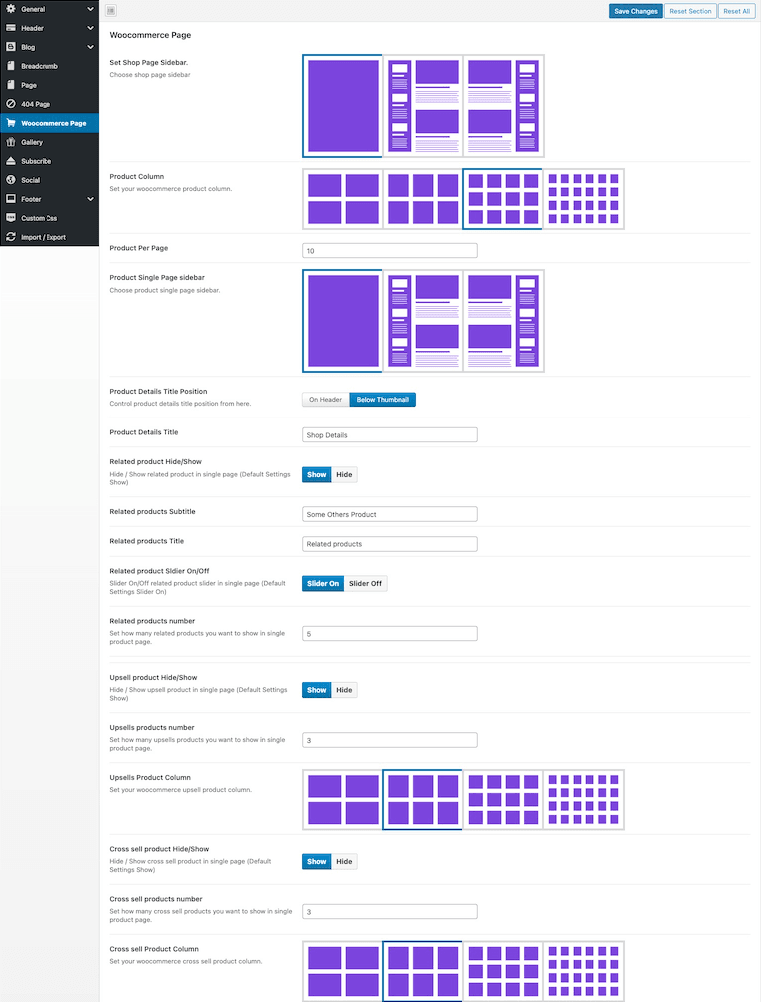
To change your WooCommerce page settings, log in to your WordPress Admin Dashboard and follow the steps below:
Step 1: Access Theme Options
- Go to Dashboard.
- Navigate to Kleanix Options → WooCommerce Pages
- Customize the WooCommerce page layout and product display settings
- Save Changes.
Step 2: Set Shop Page Sidebar
- In the Set Shop Page Sidebar section, choose the layout of your shop page.
- You can select a sidebar layout or a full-width layout depending on your preference.
Step 3: Product Columns
- Under Product Columns, select how many product columns you want to display on the shop page.
- Available options usually include 2, 3, 4, or more columns.
Step 4: Product Per Page
- Set the number of products you want to show per page in the Product Per Page field.
- Example: Enter
12to display 12 products per page.
Step 5: Product Single Page Sidebar
- In the Product Single Page Sidebar section, select the sidebar layout for individual product pages.
- You can choose to display the sidebar on the left, right, or remove it entirely.
Step 6: Product Details Title Position
- Under Product Details Title Position, choose where the product title will appear:
- On Header – Displays the title above the product image.
- Below Thumbnail – Displays the title below the product image.
Step 7: Related Products Settings
- Related Product Hide/Show: Toggle between Show or Hide to control whether related products are displayed.
- Related Products Subtitle: Optionally, enter a subtitle (e.g., “You may also like”).
- Related Products Title: Set a custom title for the related products section.
- Related Product Slider On/Off: Turn the slider On to display related products in a slider format.
- Related Products Number: Specify how many related products should be displayed (e.g., 5).
Step 8: Upsell Products Settings
- Upsell Product Hide/Show: Choose Show or Hide to control upsell product visibility.
- Upsell Products Number: Enter the number of upsell products you want to display.
- Upsell Product Columns: Select the column layout for upsell products.
Step 9: Cross-Sell Products Settings
- Cross-Sell Product Hide/Show: Choose whether to display cross-sell products.
- Cross-Sell Products Number: Enter how many cross-sell products should appear.
- Cross-Sell Product Columns: Choose the number of columns for displaying cross-sell products.
Step 10: Save Your Settings
- After making all changes, click the Save Changes button at the top right to apply your settings.
- You can also use the Reset Section button to reset this section only, or Reset All to reset all theme options.