Want to build your site like the demo? You can do it with just one click! Our theme provides an easy solution to import the demo content exactly as shown on our preview website. Please follow the instructions below.
Note: Please remember that when you are done with the demo import, your some existing settings will be replaced by the demo contents Like: Your menu, Customizer. So it is recommended that you should only do this in fresh site.
- Install and Activate Required Plugins
- Go to Appearance → Install Plugins and ensure all recommended plugins are installed and activated before proceeding.
- Remove Default WordPress Content
- Go to Posts → All Posts and delete the default post.
- Then go to Pages → All Pages and delete all pages.
- Navigate to Appearance → Import Demo Data
- Click on the “Continue & Import” button below;
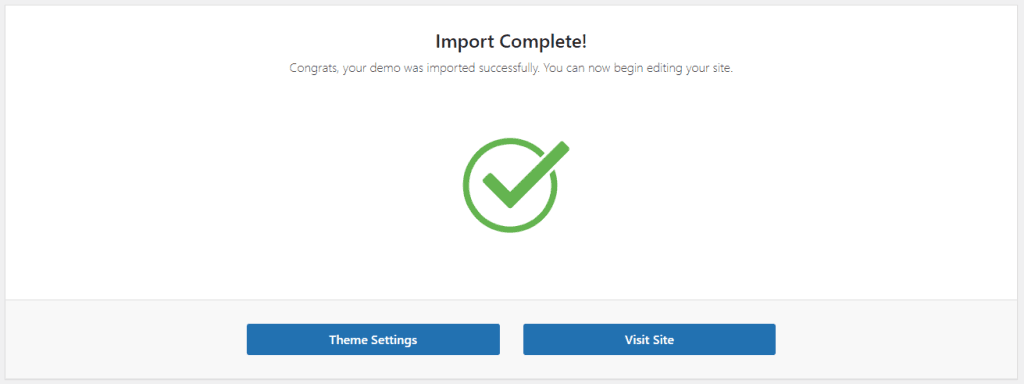
- Once the import is complete, you’ll see the message: “Congratulations! Your demo has been imported successfully.”
- Update Permalink Settings
- Go to Settings → Permalinks and click Save Changes to finalize the setup.