Skip to content
Documentation

Escul

⌘K
  • Getting Started
    • Requirements
    • What’s Included
  • WordPress Installation
  • Installing the theme
    • Installing required plugins
    • Updating the theme
    • Using FTP Clients
    • Using Theme Uploader
  • Importing Demo Contents
    • Manual Setup
    • One Click Demo Setup
  • Basic Setting
    • Change Logo
    • Home and Blog Page Setting
    • Menu Customization
    • Site Title and Favicon
  • Elementor Settings
  • Theme Customization
    • 404 Page Setup
    • Back to Top
    • Blog or News Page Setup
    • Breadcumb Setup
    • Color
    • Contact Form Setup with Mail Submit
    • Custom CSS Added
    • Footer Setup
    • Header Setup
    • Mail Chimp Setup
    • Mobile Menu Logo
    • Page Setup
    • Preloader
    • Social Media Setup
    • Typography
    • WooCommerce Page Setup
  • Item Support
  • Item Rate
  1. Home
  2. Escul
  3. Theme Customization
  4. Typography

Typography

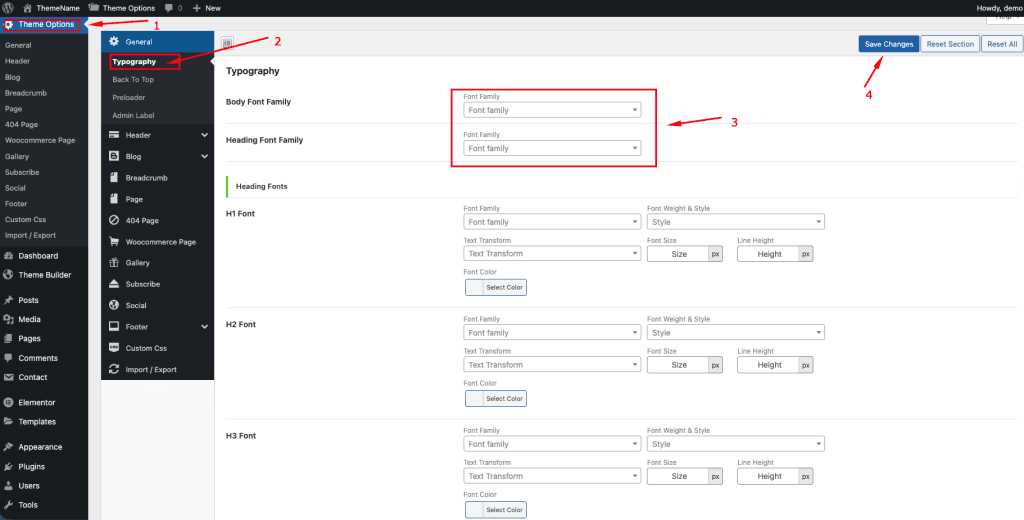
To change your Typhography Settings, log in to your WordPress Admin Dashboard and follow the steps below:

  1. Go to Dashboard.
  2. Navigate to Escul Options → General → Typhography
  3. Change Global Typhography – Follow Image Instruction.
  4. Save Changes.

Doc navigation

← ColorBack to Top →
Still stuck? How can we help?
Updated on March 8, 2026
Was this article helpful to you? No Yes

How can we help?

All rights reserved