We are using plugin “Contact Form 7” for contact functionality. You can see their documentation for better understanding. https://contactform7.com/docs/
If you don’t want to go through all the troubles to check their documentation and just want to use the default contact form we provided with this theme, please at least set up the default emails in contact form settings. To do that, please follow the steps below:
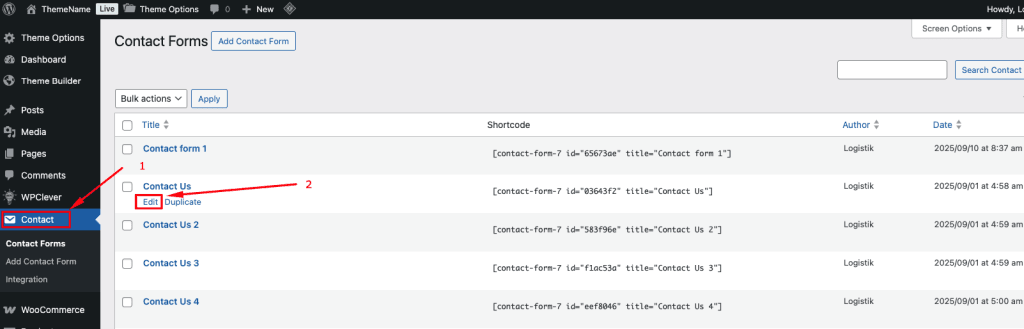
- Get back to the WordPress Dashboard and navigate to Contact → Contact Forms
- Select the contact form you want to edit.
- Click the Edit link for that form.
- Go to the Mail tab to configure the email settings.
Video: https://www.youtube.com/watch?v=3f4H90Nt1Go
Mail Tab Fields Explained
To:
The email address where contact form submissions will be sent.
Example: [_site_admin_email] sends emails to the site admin.
From:
The sender’s email address for the notification email.
Example: [_site_title] <wordpress@yourdomain.com> — usually the site name with a domain email.
Subject:
The subject line for the email notification.
Example: [_site_title] "[your-subject]" will include the site name and the subject entered by the user.
Additional Headers:
Optional field to add extra email headers.
Example: Reply-To: [email] ensures replies go to the person submitting the form.
Message Body:
The content of the email that will be sent.
Example: Form all content, Subject and other message
